---
title: "Useful Git Configurations You May Have Missed"
url: "/articles/useful-git-configurations-you-may-have-missed"
type: article
date: 2023-11-15
updated: 2023-11-16
---
# Useful Git Configurations You May Have Missed
# Useful Git Configurations You May Have Missed
Git is a powerful tool, but the interface can be imposing. Many improvements have been made to Git over the years to help address this, but you must configure Git properly to take advantage.
By
[ Chris DeLuca ](/about/chris-deluca)
November 15, 2023
Git is a very powerful tool, but the interface can be imposing. Many improvements have been made to Git over the years to help address this, but for compatibility reasons, many of these are not the default.
However, Git can be configured to opt-in to these improvements. Taking a few minutes to configure Git can make your life easier, from improving diffs, better integrating with your IDE, making a shortcut for long commands, and beyond.
All configurations are added via the git config command and are saved in a file in your home directory called `~/.gitconfig`. This file can be copied between machines to keep your configurations with you.
**Note**: If you want to make a configuration only for the current repository instead of for all repositories on your machine, omit the `--global` flag in the configuration command.
## **Editor integrations**
Several git commands, such as `commit` or `rebase --interactive`, open an editor to complete the operation.
By default, git looks at the `$GIT_EDITOR`, `$VISUAL` or `$EDITOR` (in that order) environment variables to determine the editor to use. If none of those are set, it will use a default based on the system it was compiled on, usually vim.
To change this setting, either set one of the environment variables above (the latter of which are used by other programs as well) or configure git directly.
```ini
git config --global core.editor "my-great-editor"
```
The exact command to use in place of "my-great-editor" depends on the editor you want to configure.
- VSCode: `code –wait`
- PHPStorm: `pstorm -n -w`
- Sublime: `subl -n -w`
- Neovim: `nvim`
- nano: `nano`
Many editors and IDEs contain their own git interface, but it can still be helpful to explicitly set your desired editor to utilize it in all instances.
For example, if you run `git commit` from your terminal (either standalone or inside your IDE), git will open a new commit buffer inside your configured editor instead of opening vim in the terminal.
**Note**: For graphical editors like VSCode and PHPStorm, make sure the command line tool specific to each editor is properly installed and accessible in your $PATH.
## Better merge conflicts
Merge conflicts are one of the harder aspects of version control. By default, git produces a 2-way diff of the conflict, which makes resolving some merges hard or even impossible without scanning back through log messages.
Git can be configured to use a 3-way diff, which compares the current branch against the changes to be merged *and* the common ancestor from which both changesets derive. This makes it possible to discover the sequence that overlapping changes should be applied.
For example, here’s a visual conflict resolution using the default setting.
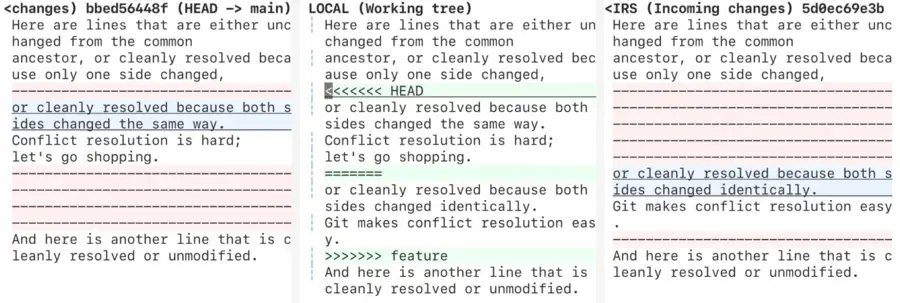 A merge conflict with the default setting.
And here’s that same conflict using diff3.
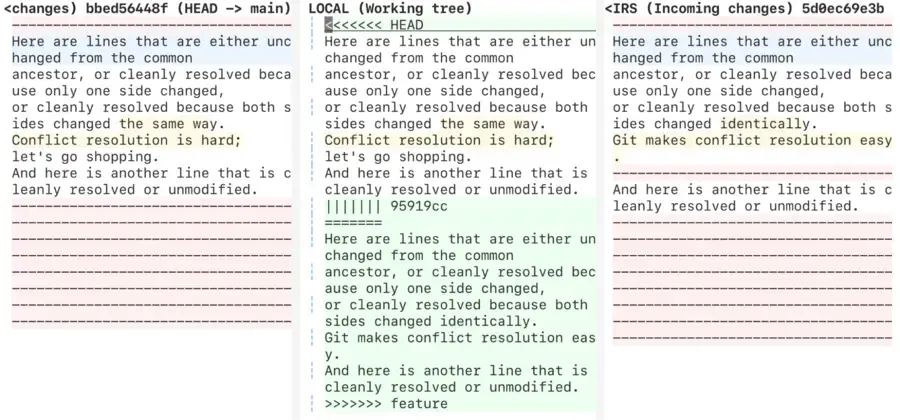 A merge conflict with 3-way diffs enabled.
Notice the extra information about the ancestor commit.
```ini
git config --global merge.conflictstyle diff3
```
See also:
- [How merge conflicts are presented](https://git-scm.com/docs/git-merge#_how_conflicts_are_presented).
- [Merging with diff3](https://blog.jcoglan.com/2017/05/08/merging-with-diff3/).
- [Stackoverflow thread on diff3](https://stackoverflow.com/questions/27417656/should-diff3-be-default-conflictstyle-on-git).
## **Merge conflict editor integrations**
Git can be configured to launch an external program to handle merge conflicts, which can greatly increase efficacy in handling the merge, especially with graphical programs that can represent the changes side-by-side.
Many dedicated paid and free tools exist for this purpose, but here we'll cover integrating with some common IDEs/editors.
Once configured, run `git mergetool` during a merge conflict to launch your editor.
### VSCode
```ini
git config --global mergetool.vscode.cmd 'code --wait $MERGED'
git config --global merge.tool vscode
```
Add `--new-window` to the "code" command above, to always open a new VSCode window for the merge conflicts.
### PHPStorm
```ini
git config --global mergetool.phpstorm.cmd 'pstorm merge "$LOCAL" "$REMOTE" "$BASE" "$MERGED"'
git config --global merge.tool phpstorm
```
### Sublime
```ini
git config --global mergetool.sublime.cmd 'subl -n --wait "$REMOTE" "$BASE" "$LOCAL" "$MERGED" --command "sublimerge_diff_views"'
git config --global mergetool.sublime.trustExitCode false
git config --global merge.tool sublime
```
### Neovim
With the "fugitive" plugin:
```ini
git config --global mergetool.neovim.cmd 'nvim -c "Gdiffsplit!" "$MERGED"'
git config --global merge.tool neovim
```
Plain neovim:
```ini
git config --global mergetool.neovim.cmd 'nvim -d "$MERGED"'
git config --global merge.tool neovim
```
## Remove merge conflict backup files
Git saves backups of the pre-merged files with conflict markers as `file-name.ext.orig` as untracked files. While the instinct to backup is admirable, git is already a tool for that, and we’ve never needed these files.
To not save these backups:
```ini
git config --global mergetool.keepBackup false
```
## Automatic remote branch pruning
Git keeps a cache of remote branches locally. Normally, git only deletes removed branches from this cache when running `git remote prune origin`, or if the `--prune` flag is passed to `git fetch` or `git pull`.
To automatically prune on every fetch or pull:
```ini
git config --global fetch.prune true
```
[See the git prune documentation](https://git-scm.com/docs/git-config#Documentation/git-config.txt-fetchprune).
## Better diffs
Git diff includes an optional feature to color moved lines differently, which can be helpful in understanding the changes.
To turn it on:
```ini
git config --global diff.colorMoved true
```
[See the git colorMoved documentation](https://git-scm.com/docs/git-config#Documentation/git-config.txt-diffcolorMoved).
## **Diff editor integrations**
Git can launch an external program to show diffs, much like merge conflicts (see above).
The following are configurations to let your IDE/editor show these diffs. Onceconfigured, you can launch the diffs in your editor with `git difftool`. Git difftool takes all the same arguments as git diff, so `git difftool my-hash` works.
### VSCode
```ini
git config --global difftool.vscode.cmd 'code --wait --diff "$LOCAL" "$REMOTE"'
git config --global diff.tool vscode
```
### PHPStorm
```ini
git config --global difftool.phpstorm.cmd 'pstorm diff "$LOCAL" "$REMOTE"'
git config --global diff.tool phpstorm
```
### Sublime
```ini
git config --global difftool.sublime.cmd 'subl -n --wait "$REMOTE" "$LOCAL" --command "sublimerge_diff_views {\"left_read_only\": true, \"right_read_only\": true}"'
git config --global diff.tool sublime
```
### Neovim
```ini
git config --global difftool.neovim.cmd 'nvim -d "$LOCAL" "$REMOTE"'
git config --global diff.tool neovim
```
## **Aliases**
Git aliases are small extensions of the git command to help customize git to your workflow. Here are a few examples of some common, generally useful abbreviations.
Feel free to experiment to adhere git to your specific workflow requirements better.
**Note:** All these aliases do not overwrite the original commands. You only need to make each configuration once per machine.
The format below is a description in a comment, then how you would invoke the alias, followed by how you would configure that alias.
```ini
# abbreviate "checkout" to "co": git co
git config --global alias.co checkout
# abbreviate "commit" to "cm": git cm
git config --global alias.cm commit
# abbreviate "branch" to "br": git br
git config --global alias.br branch
# abbreviate "status" to "st": git st
git config --global alias.st status
# abbreviate "cherry-pick" to "cp": git cp
git config --global alias.cp cherry-pick
# abbreviate "push origin current-branch-name" to po: git po
git config --global alias.po "!git push origin $(git rev-parse --abbrev-ref HEAD)"
# safely pull all branches as "up": git up
git config --global alias.up "pull --rebase --autostash --all"
# Keep a file tracked, but hide it from the index. Useful if you need to change a file and keep it tracked, but don't want to ever commit that change.
# git hide path/to/file
git config --global alias.hide "update-index --assume-unchanged"
# git unhide path/to/file
git config --global alias.unhide "update-index --no-assume-unchanged"
# List history in a single line: git list
git config --global alias.list "!git log --pretty=format:\"%C(magenta)%h%Creset -%C(red)%d%Creset %s %C(dim green)(%cr) [%an]\" --abbrev-commit"
# Show all branches with added information: git branches
git config --global alias.branches "branch --format='%(HEAD) %(color:yellow)%(refname:short)%(color:reset) - %(contents:subject) %(color:green)(%(committerdate:relative)) [%(authorname)]'"
```
[See the git alias documentation](https://git-scm.com/docs/git-config#Documentation/git-config.txt-alias).
## Git grep line numbers
git grep can be used to quickly search the repository. Since it leverages the git index, this is usually the fastest code search there is.
By default, the search does not show the line numbers where the match occurred. To turn on line numbers:
```ini
git config --global grep.linenumber true
```
[See the git grep documentation](https://git-scm.com/docs/git-grep).
## **Automatic color**
Git can display different colors to highlight different kinds of output. To make sure this is always on:
```ini
git config --global color.ui auto
```
## **New repo default branch**
When creating a new git repository locally (`git init`), the default branch created is called master. Standard branch naming now uses main.
You could change the name after the repository has been created, but that's annoying and error-prone.
To change the default branch for new repositories:
```ini
git config --global init.defaultBranch main
```
## **Disable hints**
Experienced git users may find the advice output for many commands noisy/obtrusive.
For example, the standard output of git status includes:
```ini
Changes not staged for commit:
(use "git add ..." to update what will be committed)
(use "git checkout -- ..." to discard changes in working directory)
```
To disable these messages:
```ini
git config --global advice.statusHints off
```
[See all the advice that can be disabled](https://git-scm.com/docs/git-config#Documentation/git-config.txt-advice).
## Conclusion
Git is a powerful, complex tool, and its interface, by all accounts can use improvement. However, some of that improvement is within our power to control! Just a little bit of time spent configuring Git pays dividends in usability and functionality. This is a tool most developers use every day; why not invest in it?
Published in:
- [ Drupal Development ](/topics/drupal-development)
- [ System Administration ](/topics/system-administration)
You must have JavaScript enabled to use this form.
## Get in touch with us
### Tell us about your project or drop us a line. We'd love to hear from you!
Your full name
Your email address
Your organization
How you heard about us
Tell us more
Leave this field blank